Quick Start Guide
Get up and running with SearchVector in minutes — from creating your account to tracking your first keywords.
Before you begin
- A SearchVector account (sign up free at searchvector.io — no credit card required)
- Your website URL
- Access to your Google Search Console account (recommended)
Step 1: Create your account
- Go to searchvector.io and click Get Started Free.
- Sign up with your email or Google account.
- Verify your email address.
Step 2: Set up your first project
A project represents one website you want to track. Everything in SearchVector — rankings, GSC data, audits — is organized inside a project.
- From My Projects, click + New Project (top-right).
- Enter your Website URL — this cannot be changed after creation.
- Give your project a name and select a Default Country.
- Click Create Project.
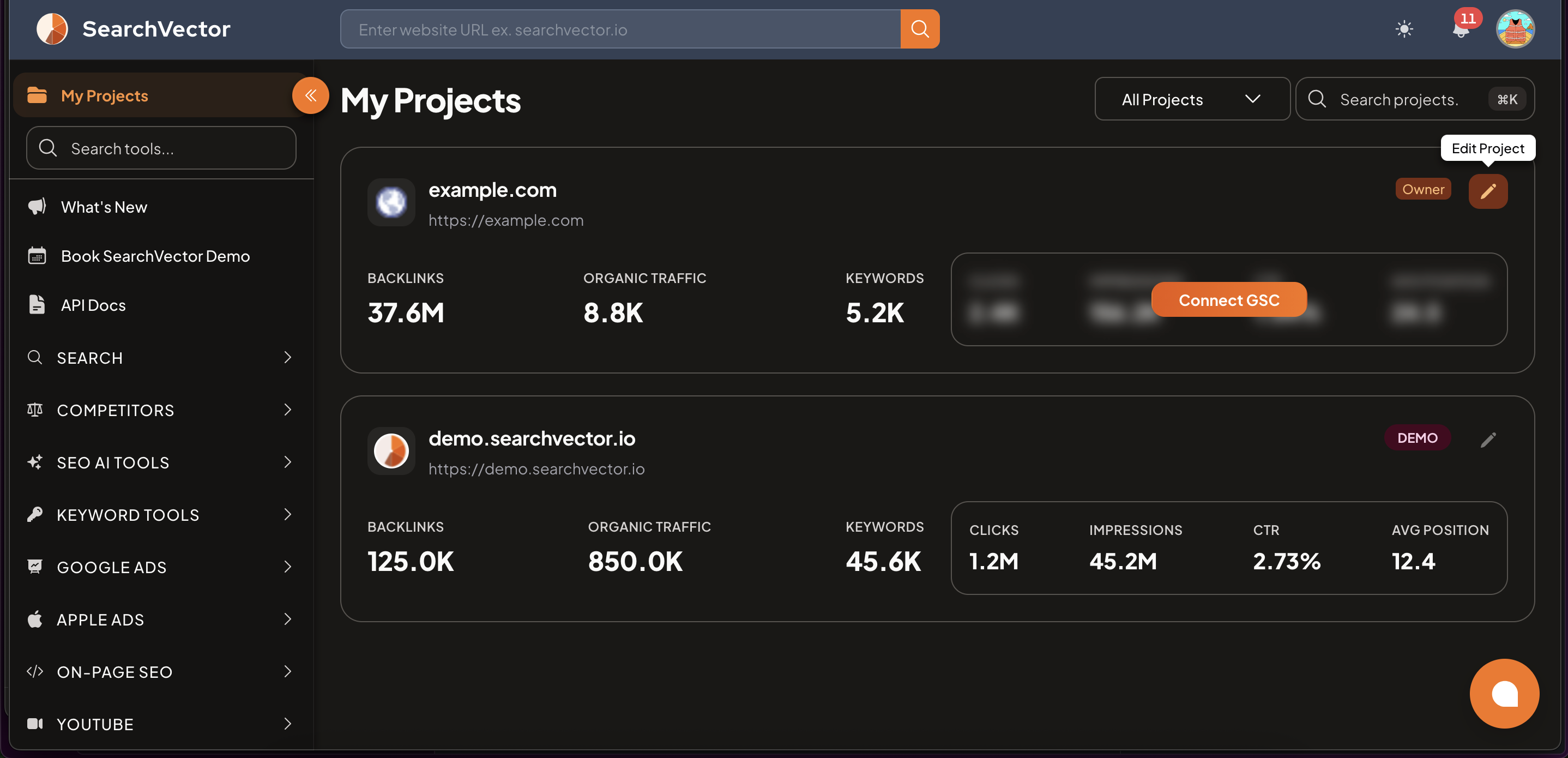
Choose your Website URL carefully — it cannot be edited after the project is created. If you need to track a different domain, create a new project.
For detailed setup steps, see Setting Up Your Project.
Step 3: Connect Google Search Console
Connecting GSC is the single most important step — it unlocks real click and impression data, index status, content gaps, and much more across SearchVector tools.
See Connect Google Search Console for step-by-step instructions.
Connect GSC before adding keywords — it auto-populates your Default Country and enables Brand Regex filtering.
Step 4: Add keywords to track
- In your project, click + Add Keywords.
- Enter keywords — one per line or comma-separated.
- Click Save.
Rankings are checked daily. New keywords may take up to 24 hours to show their first data.
Start with 10–20 keywords that matter most to your business. You can always add more later.
Step 5: Add competitors
- In your project dashboard, find the Competitors section and click Edit.
- Enter competitor domain URLs.
- Click Save.
SearchVector tracks their rankings alongside yours so you can compare side by side.
What you can do next
Once your project is set up, explore the full platform:
Search
| Tool | What it does |
|---|---|
| Rank Tracker | Monitor daily keyword rankings across Google |
| GSC Insights | Analyze clicks, impressions, CTR, and content gaps |
| GSC Index Status | Check if any page is indexed or excluded by Google |
| Google Indexing Request | Submit URLs to Google for faster indexing |
| Google Analytics | View GA4 traffic data alongside your SEO metrics |
Keyword Tools
| Tool | What it does |
|---|---|
| Keyword Research | Find keywords with volume, CPC, difficulty, and trends |
| Keyword Clusters | Group keywords into topical clusters |
| Site Audit | Find and fix technical SEO issues |
| Bulk Volume Lookup | Check volume for up to 10,000 keywords at once |
| Keyword Research with GSC | Discover keywords + overlay your actual GSC performance |
Competitor Analysis
| Tool | What it does |
|---|---|
| Competitor Analysis | Discover competitor keywords and ranking gaps |
| Multi-Keyword Gap Analysis | Compare gaps across multiple competitors at once |
| Competitor Finder | Automatically discover your top search competitors |
| Topic Gap Analysis | Find content topics competitors rank for but you don't |
On-Page SEO
| Tool | What it does |
|---|---|
| Title & Meta Analyzer | Audit page titles and meta descriptions in bulk |
| Title Optimizer | Run AI-powered A/B title experiments via WordPress |
| Sitemap Analyzer | Discover and validate your XML sitemap |
| CWV Analytics | Check LCP, CLS, INP, FCP, and TTFB scores |
Google Ads
| Tool | What it does |
|---|---|
| Campaign Overview | Track spend, clicks, and conversions across all campaigns |
| Campaign Insights | Deep keyword and budget performance insights |
| Google Search Ads Insights | Find profitable keywords and fix budget leaks |
| GAQL ↔ GSC | Compare paid vs organic data side by side |
Apple Ads
| Tool | What it does |
|---|---|
| Performance Report | Track Apple Search Ads spend, installs, and TTR |
| ASA Campaign Creator | Launch 4 campaign types in under 3 minutes |
| ASO Recommendations | AI-powered App Store Optimization suggestions |
YouTube
| Tool | What it does |
|---|---|
| YouTube Channel Audit | Audit channel performance and video metrics |
| YouTube Video Analyzer | Get SEO score and recommendations for any video |
| YouTube Hashtag Generator | Generate relevant hashtags for your videos |
| YouTube Comment Reply | Manage and reply to comments from one place |
Social & Local
| Tool | What it does |
|---|---|
| Social Optimization | Find keyword opportunities on Reddit, Quora, and YouTube |
| GMB Insights & Reviews | Track Google Business Profile performance |
Beta
| Tool | What it does |
|---|---|
| Topic Gap Analysis | Find content topics competitors rank for but you don't |
| GSC Seasonality Analysis | Understand seasonal traffic trends for your pages |
| Bulk Volume Lookup | Check volume for up to 10,000 keywords at once |
| Keyword Research with GSC | Discover keywords + overlay GSC performance data |
Account
| Section | What it covers |
|---|---|
| Integrations | Connect GSC, Google Ads, Apple Ads, YouTube, and GMB |
| Team Members | Invite team members and assign roles |
| Billing | View plan, credits, and usage limits |
| Credits History | Track which tools used your credits |
| API Token | Get your token for Chrome extensions and API use |
Getting help
For support, contact the SearchVector team at [email protected].