Team Members
Manage who has access to your SearchVector project — invite team members, assign roles, and track membership.
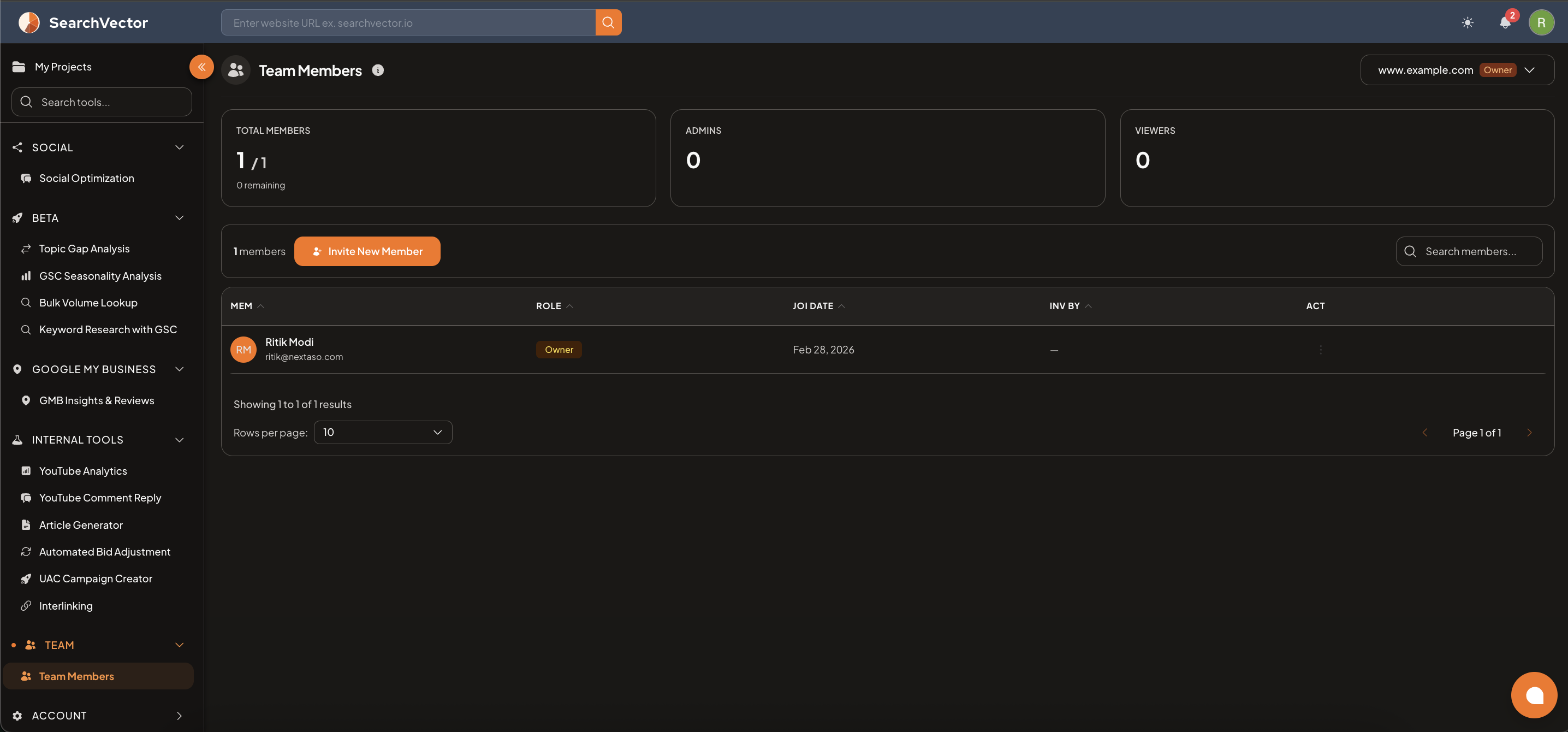
How to open
From the left sidebar, go to Team → Team Members.
Summary
At the top, 3 cards show your team status:
| Card | Description |
|---|---|
| Total Members | Current team size vs your plan limit (e.g., 1/1 — 0 remaining) |
| Admins | Number of admin-role members |
| Viewers | Number of viewer-role members |
Members table
| Column | Description |
|---|---|
| MEM | Member name and email address |
| ROLE | Role — Owner, Admin, or Viewer |
| JOI DATE | Date the member joined the project |
| INV BY | Who invited this member |
| ACT | Actions — remove member or change role |
Inviting team members
Click Invite New Member to send an email invitation. Invited members can view or manage your SearchVector project based on the role you assign.
Roles
| Role | Permissions |
|---|---|
| Owner | Full access — can manage billing, team, and all tools |
| Admin | Can use all tools and manage team members |
| Viewer | Read-only access to project data |
note
The number of team members you can add depends on your plan. Upgrade from Account → Billing to add more seats.