YouTube Comment Reply
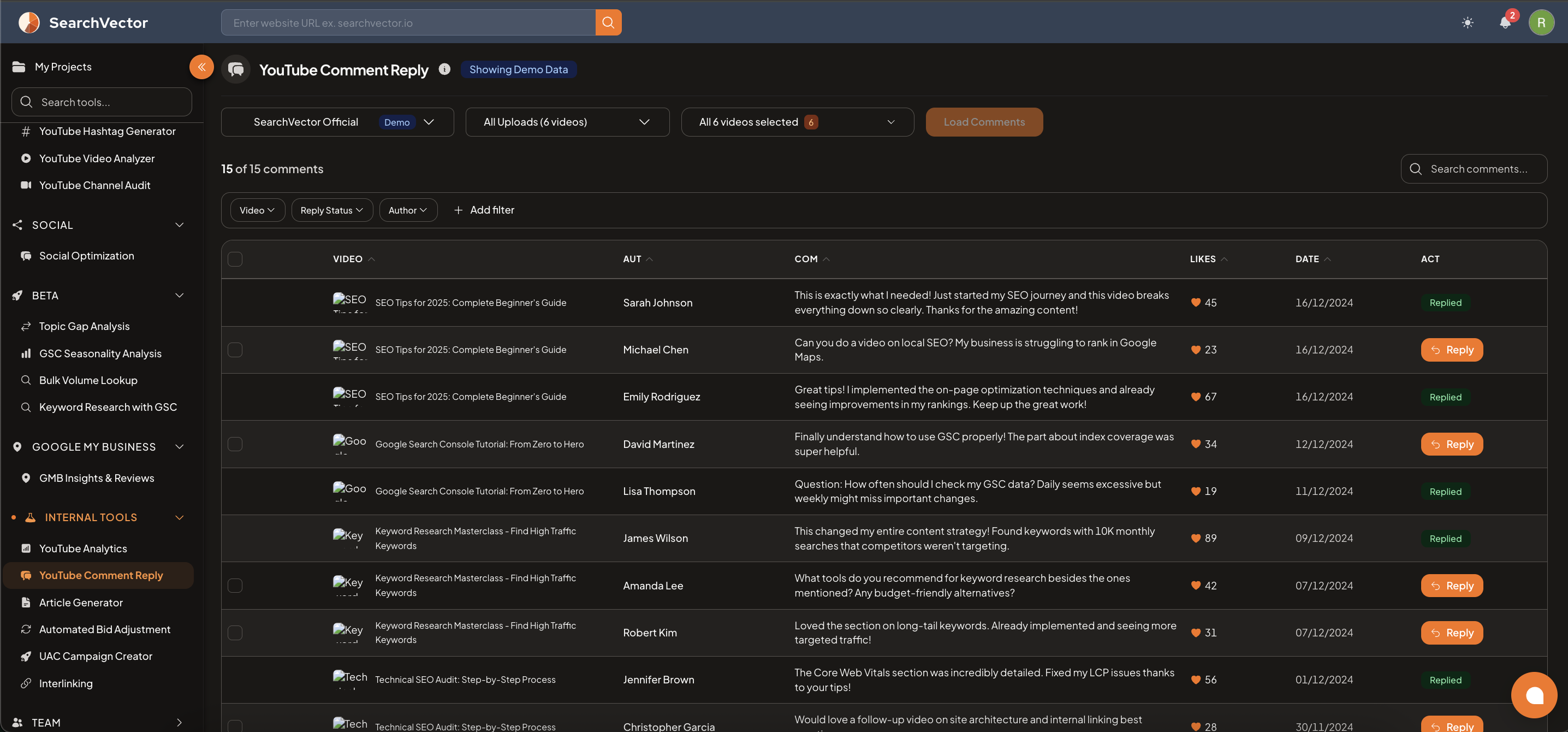
View and reply to YouTube comments across all your videos from one place — filter by video, reply status, and author to manage your community efficiently.
How to open
From the left sidebar, go to Internal Tools → YouTube Comment Reply.
How to use
- Select your YouTube channel from the dropdown (connect via Integrations if not connected).
- Select which videos to load comments from — All Uploads, or filter by specific videos.
- Click Load Comments to fetch all comments.
Results table
| Column | Description |
|---|---|
| VIDEO | Thumbnail and title of the video the comment is on |
| AUT | Comment author name |
| COM | Comment text |
| LIKES | Number of likes on the comment |
| DATE | Date the comment was posted |
| ACT | Action — Reply (orange button) or Replied (green badge if already replied) |
Filters
Filter comments by:
- Video — view comments for a specific video
- Reply Status — filter by unreplied or already replied
- Author — search by commenter name
- + Add filter — additional filters
Search across all comments using the Search comments field.
Replying to comments
Click the orange Reply button on any comment to open the reply input and respond directly — without leaving SearchVector.
tip
Filter by Reply Status: Unreplied and sort by Likes to prioritize responding to the most-liked comments first — these have the highest visibility under your videos.
Requirements
- YouTube account connected via Account → Integrations.