Credits History
Track every credit transaction — see exactly which tools consumed credits, how many, and your running balance over time.
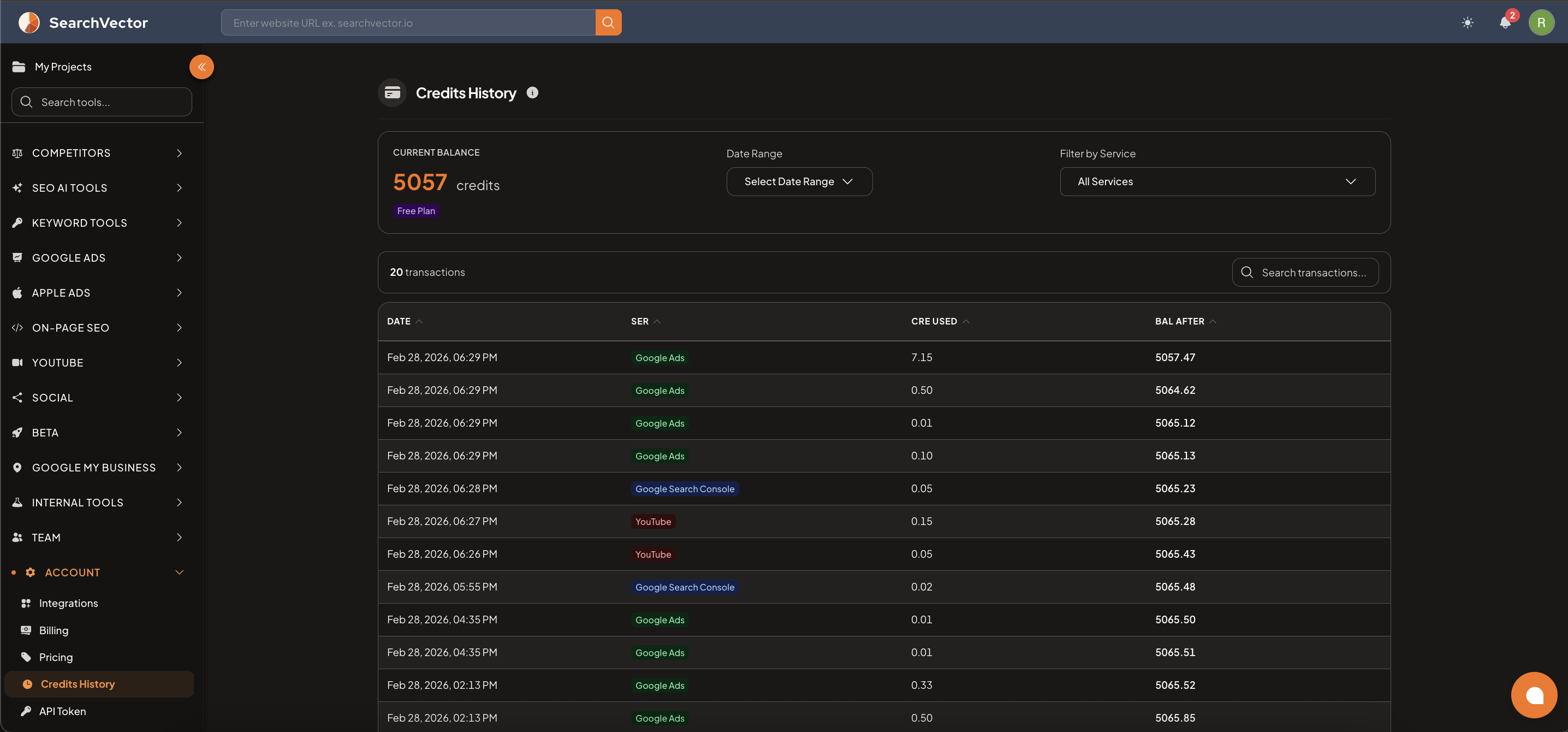
How to open
From the left sidebar, go to Account → Credits History.
Current balance
At the top, your current credit balance is shown along with your active plan (e.g., Free Plan, Pro Plan).
Filters
| Filter | Description |
|---|---|
| Date Range | Select a custom date range to view transactions in a specific period |
| Filter by Service | Filter transactions by service (e.g., Google Ads, Google Search Console, YouTube) |
Transactions table
| Column | Description |
|---|---|
| DATE | Date and time of the credit usage |
| SER | Service that used the credits (color-coded by service type) |
| CRE USED | Number of credits consumed in that transaction |
| BAL AFTER | Credit balance after the transaction |
Services tracked
Credits are tracked per service, color-coded in the table:
- Google Ads — usage from Campaign Insights, Search Ads Insights, GAQL tools
- Google Search Console — usage from GSC-based tools
- YouTube — usage from YouTube Channel Audit, Video Analyzer, Comment Reply
- Other connected services
tip
Use Filter by Service to identify which tool is consuming the most credits. If you're running low, focus usage on your highest-priority tools first.