Connect Google Search Console
Connecting Google Search Console (GSC) to your SearchVector project unlocks click, impression, CTR, and ranking data — directly from Google — across multiple tools.
Before you begin
- Your website must be verified in Google Search Console
- You need Owner or Admin access to the GSC property
- Your SearchVector project must already be created (see Setting Up Your Project)
What connecting GSC unlocks
| Feature | Without GSC | With GSC |
|---|---|---|
| Project card metrics | Backlinks, Organic Traffic, Keywords | + Clicks, Impressions, CTR, Avg Position |
| GSC Insights | ✗ | ✓ Full search query data |
| GSC Index Status Checker | ✗ | ✓ |
| Google Indexing Request | ✗ | ✓ |
| Default Country (auto) | Manual | Auto-set from GSC |
| Brand Regex filtering | ✗ | ✓ |
| Manual Title Changer | Limited | Full URL list from GSC |
How to connect
Step 1: Open Project Settings
- Go to My Projects from the left sidebar.
- Find your project and click the pencil (edit) icon on the project card.
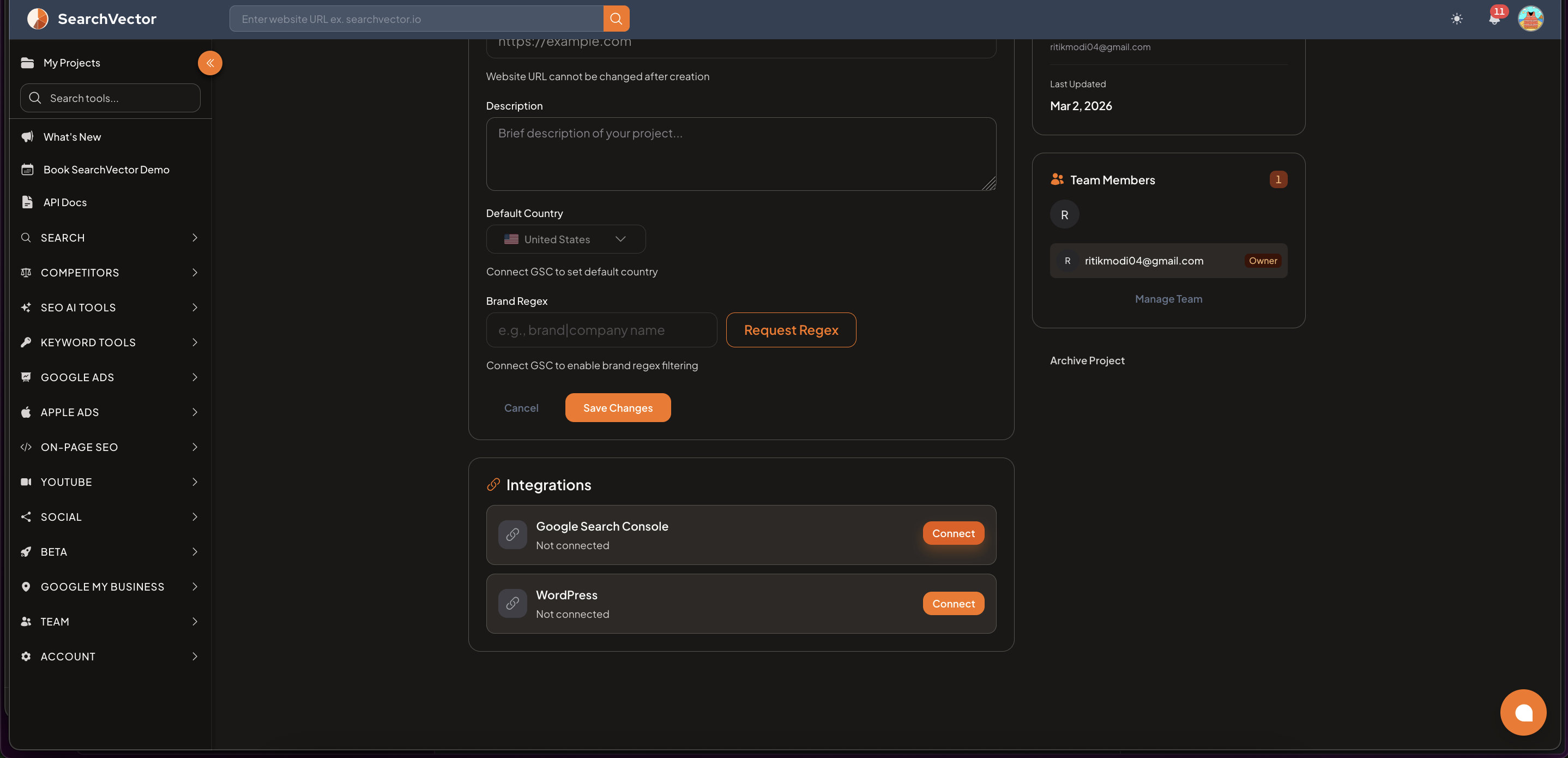
Step 2: Connect Google Search Console
- Scroll down to the Integrations section.
- Click Connect next to Google Search Console.
- A Connect Google Search Console dialog will appear.
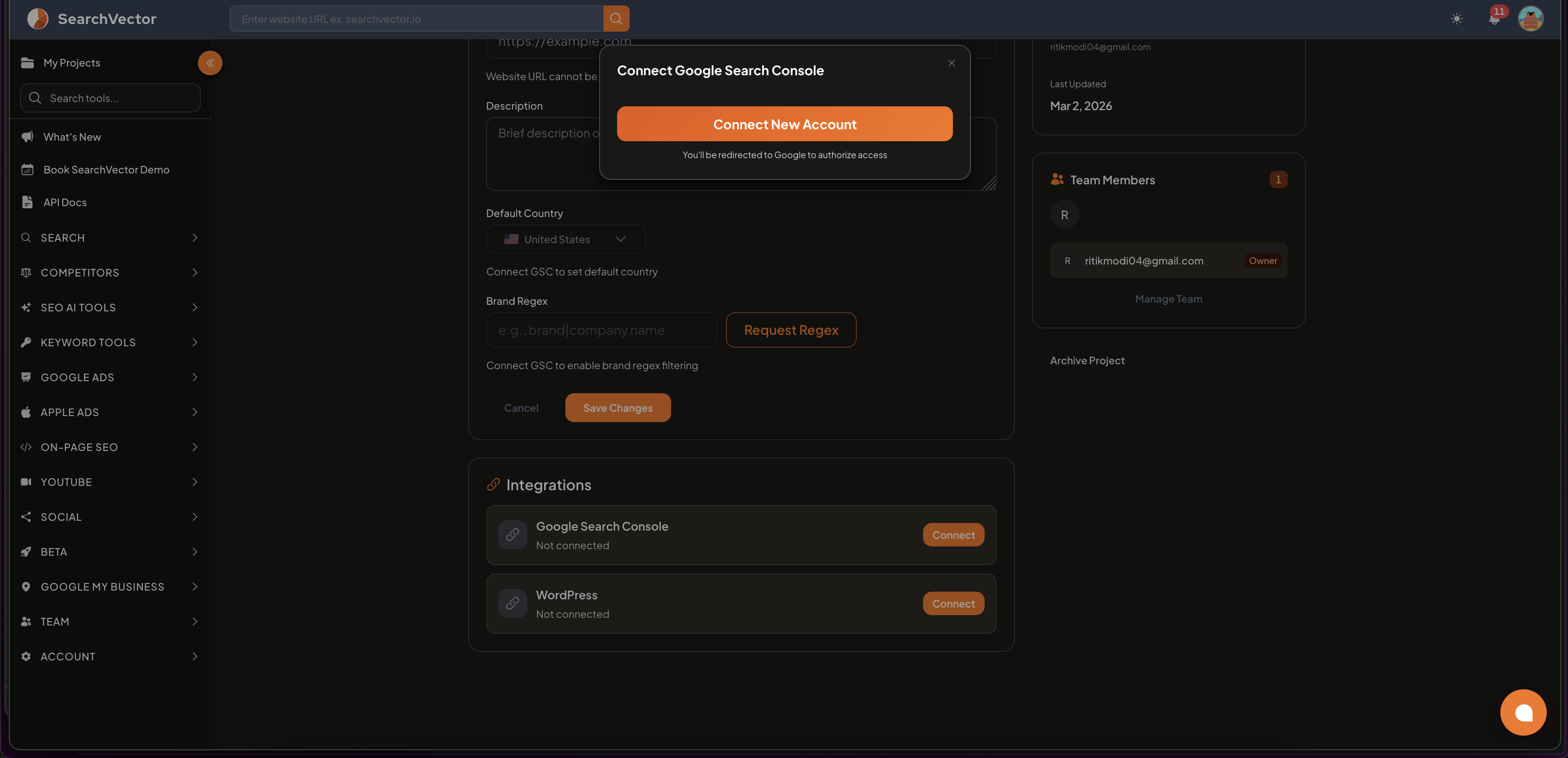
Step 3: Choose your Google account
The dialog gives you two options:
Option A — Use Existing Account
If you have previously connected a Google account, it will appear here with its status:
- Active — account is connected and working
- Click the account to use it for this project
Option B — Connect New Account
If you want to connect a different Google account:
- Click Connect New Account (orange button).
- You will be redirected to Google to authorize access.
- Select the Google account that has access to your GSC property.
- Review the permissions and click Allow.
Step 4: Confirm the connection
Once authorized, the Google Search Console integration will show as Connected in your Project Settings.
Your project card on My Projects will now display Clicks, Impressions, CTR, and Avg Position data from GSC.
After connecting
You now have access to these tools:
- GSC Insights — search queries, pages, impressions, clicks, CTR, position
- GSC Index Status Checker — check indexing status of all your URLs
- Google Indexing Request — submit URLs to Google for faster indexing
- Manual Title Changer — view all GSC URLs with performance data and update titles
Troubleshooting
GSC property not showing in the list:
- Make sure the Google account you authorized has Owner or Full User access to that property in GSC
- Go to search.google.com/search-console and verify your account has access
No data showing after connecting:
- GSC data can take 24–48 hours to sync for the first time
- Make sure your website has received organic traffic — GSC only shows data for queries that triggered impressions
Wrong property connected:
- Go to Project Settings → Integrations and disconnect GSC
- Reconnect and select the correct property
If you manage multiple websites, connect GSC separately for each SearchVector project. Each project requires its own GSC property connection.