Project Settings
Manage your project's basic information, integrations, and team members from the Project Settings page.
How to open Project Settings
- Go to My Projects from the left sidebar.
- Find your project and click the pencil (edit) icon on the top-right of the project card.
- You will be taken to
/dashboard/project/{id}/edit.
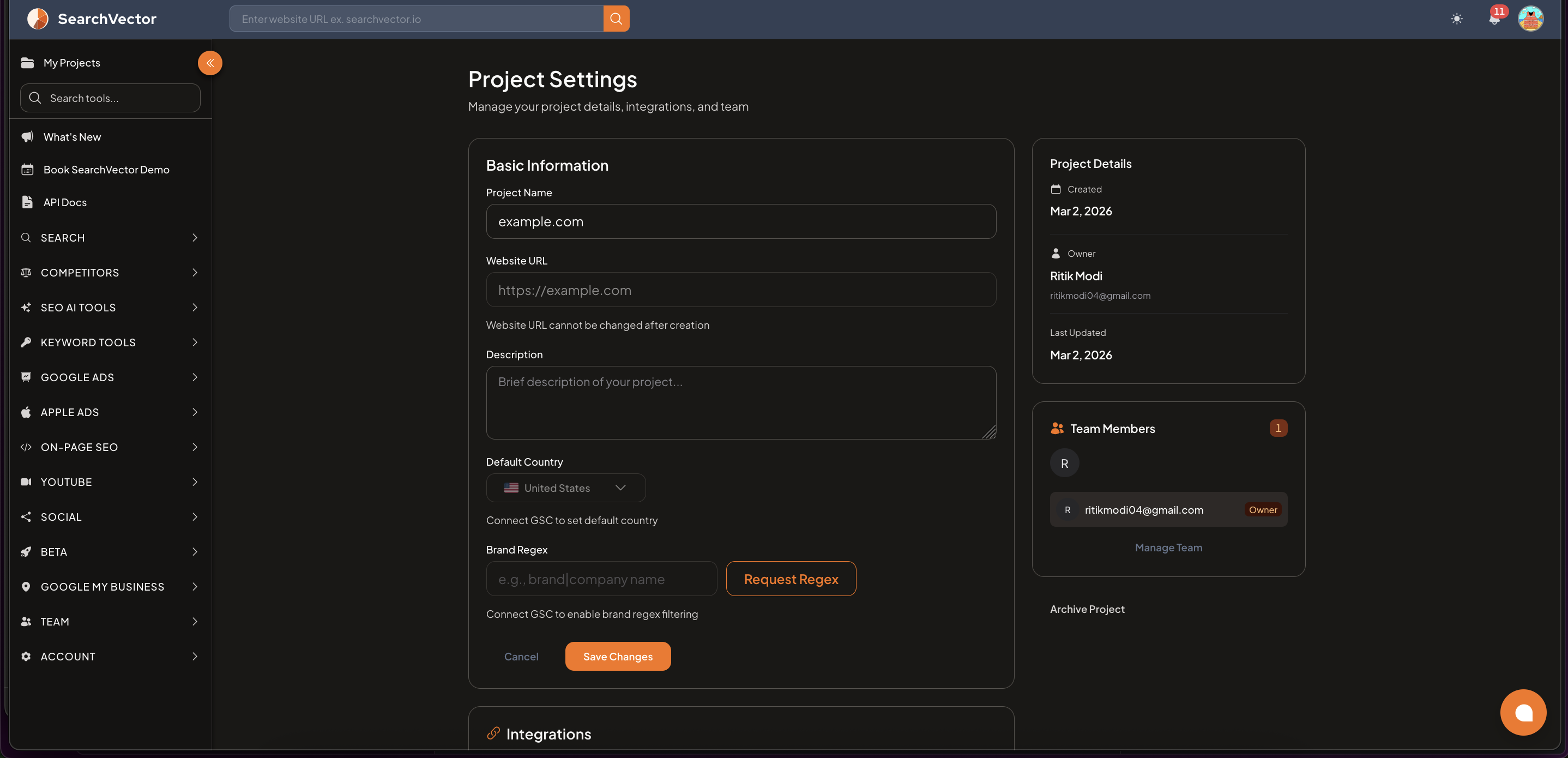
Basic Information
| Field | Description |
|---|---|
| Project Name | The display name for your project (editable anytime) |
| Website URL | Your website's URL — cannot be changed after creation |
| Description | Optional short description of the project |
| Default Country | The country used for rank tracking and keyword data — requires GSC connected to set |
| Brand Regex | A regex pattern to filter brand vs. non-brand keywords — requires GSC connected |
注記
Website URL is permanent. If you need to track a different domain, create a new project.
After making changes, click Save Changes. Click Cancel to discard.
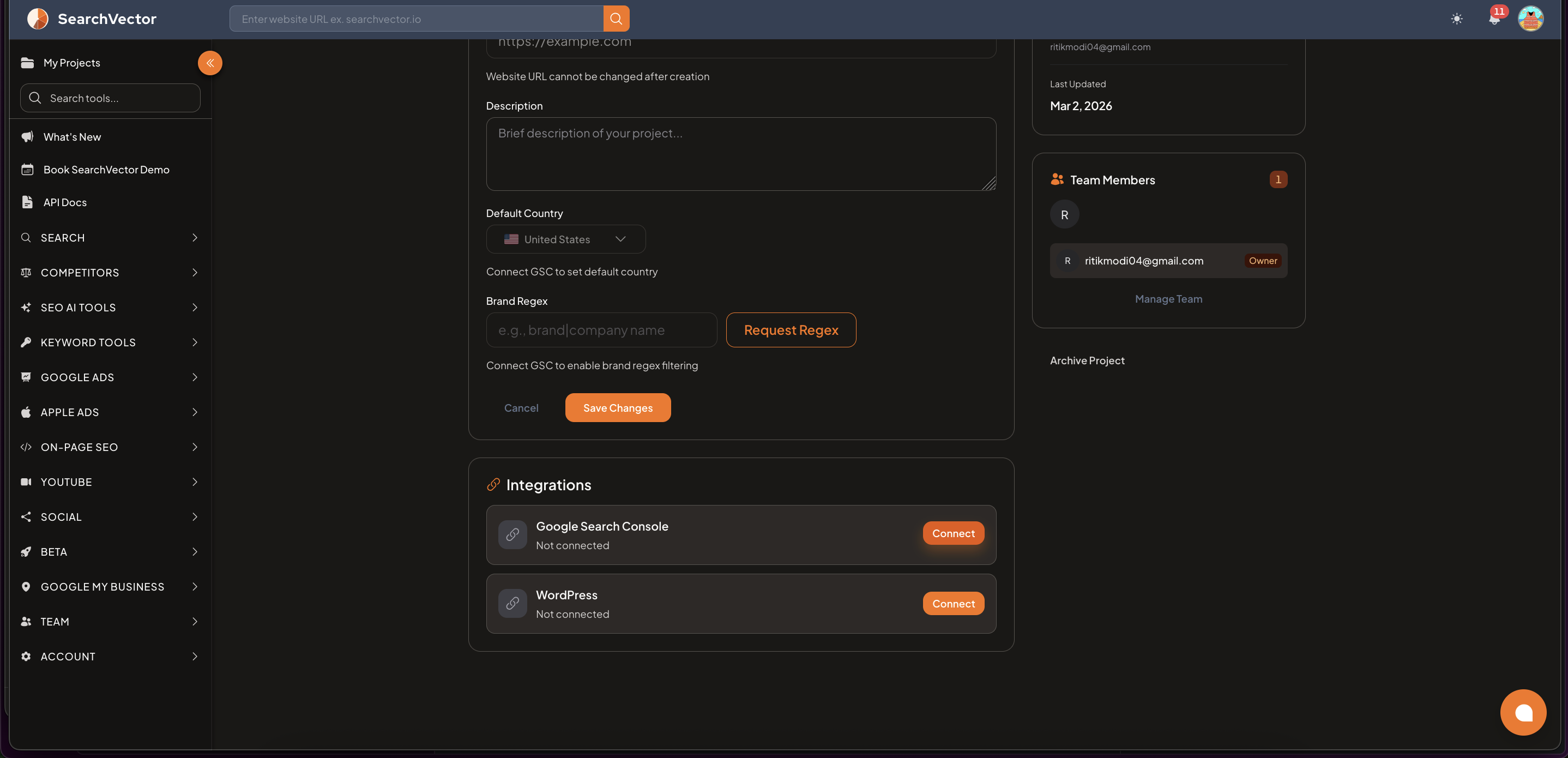
Integrations
Connect third-party services to unlock additional data inside your project.
| Integration | What it unlocks |
|---|---|
| Google Search Console | GSC Insights, Index Status, Click/Impression data, Brand Regex, Default Country |
| WordPress | Sync pages directly from your WordPress site |
To connect:
- Scroll down to the Integrations section in Project Settings.
- Click Connect next to Google Search Console or WordPress.
- Follow the OAuth authorization steps.
Team Members
The Team Members panel (right side) shows everyone who has access to this project.
| Role | Permissions |
|---|---|
| Owner | Full access — can edit settings, manage team, archive project |
| Admin | Can use all tools, invite members |
| Viewer | Read-only access — for client or stakeholder demos |
To manage your team:
- Click Manage Team to invite new members or change roles.
- Enter the member's email address and assign a role.
Project Details
The right panel shows read-only project metadata:
- Created — date the project was created
- Owner — name and email of the project owner
- Last Updated — last time settings were saved
Archive Project
To archive a project, scroll to the Archive Project option in the right panel and confirm.
警告
Archiving a project hides it from your active projects list. Your data is preserved but tools will stop collecting new data for that project.