Google Search Ads Insights
Analyze keyword-level performance across your Google Ads campaigns — find profitable keywords, spot budget leaks, discover search term opportunities, and fix underperforming keywords.
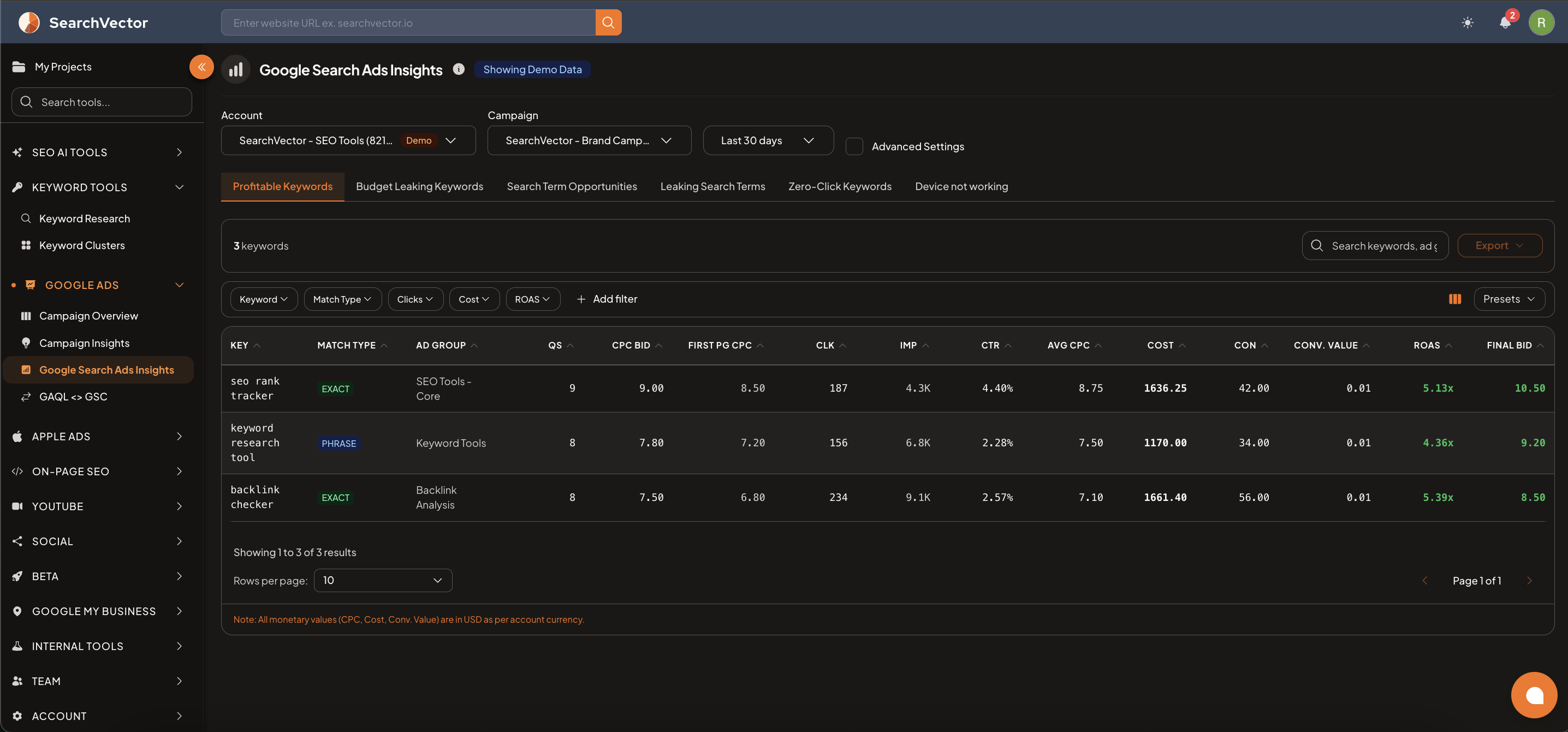
How to open
- From the left sidebar, go to Google Ads → Google Search Ads Insights.
- Select your Account and Campaign from the dropdowns.
- Choose a date range (default: Last 30 days).
- Toggle Advanced Settings for additional configuration.
Analysis tabs
The tool has 6 tabs, each showing a different view of your keyword data:
| Tab | What it shows |
|---|---|
| Profitable Keywords | Keywords with high ROAS and strong conversion performance |
| Budget Leaking Keywords | Keywords spending budget without conversions |
| Search Term Opportunities | New search terms driving traffic that you're not bidding on |
| Leaking Search Terms | Search terms with clicks but zero conversions |
| Zero-Click Keywords | Keywords getting impressions but no clicks |
| Device not working | Keywords underperforming on specific devices |
Results table columns
| Column | Description |
|---|---|
| KEY | Keyword text |
| MATCH TYPE | Exact, Phrase, or Broad |
| AD GROUP | The ad group this keyword belongs to |
| QS | Quality Score (1–10, higher is better) |
| CPC BID | Your current bid for this keyword |
| FIRST PG CPC | Estimated first page bid |
| CLK | Clicks |
| IMP | Impressions |
| CTR | Click-through rate |
| AVG CPC | Average cost per click |
| COST | Total spend for this keyword |
| CON | Conversions |
| CONV. VALUE | Value of conversions |
| ROAS | Return on ad spend (e.g., 5.13x) |
| FINAL BID | Recommended bid based on performance |
Filters
Filter results by:
- Keyword — search within keyword list
- Match Type — Exact / Phrase / Broad
- Clicks — filter by click count
- Cost — filter by spend amount
- ROAS — filter by return on ad spend
- + Add filter — additional custom filters
Use Presets to save filter combinations. Click Export to download as CSV.
ヒント
Start with Budget Leaking Keywords tab — these are keywords draining spend with no conversions. Pausing or adjusting bids here gives immediate budget savings.